


Installation Guide
Activate ChordAXE when opening for the first time on your computer

Choose between online (easiest) and offline
INSTALLATION
> Download a ChordAXE installer: macOS (.pkg) or Windows (.exe)
> Close your DAW, then run the installer and follow the instructions
> Open your DAW and make sure it scans for new plugins
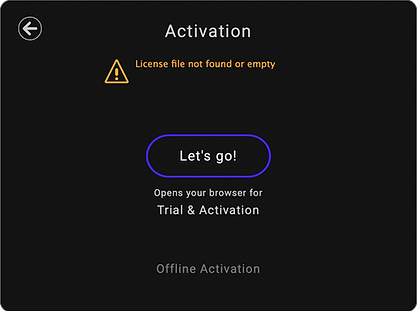
> Open ChordAXE in your DAW and click the Activate your plugin button
> See MIDI plugin basics (below) if you can't locate ChordAXE in your DAW
> Click the Let's go! button to activate online, or choose Offline Activation
> In your browser, click the Use license button
Activation is available for up to 3 computers. To free up availability for another computer, click the ? Help button, then click the … About and Deactivate buttons.
MIDI PLUGIN BASICS
MIDI plugins generate or modify MIDI to drive virtual instruments (VIs). They're played and controlled from keyboards, controllers, MIDI tracks, and computer user interfaces (mouse, trackpad, touchscreen, and QWERTY keys).
1-track setup for DAWs with MIDI inserts (simplest):


• MIDI plugins are browsed separately from VI plugins
• Live playing and track data drive the MIDI plugin which drives the track's VI plugin
• Logic and Reaper give options to record the MIDI plugin output instead of its input
2-track setup for all DAWs (track MIDI plugin ins and outs):

_0_25x.png)


• MIDI plugins may appear in VI plugin browsers
• Load a MIDI plugin on track 1, then a VI on track 2 with MIDI sourced from track 1
• The MIDI plugin is driven by live playing and track data to produce MIDI for track 2
• Track 2 receives MIDI from track 1 for recording/editing and driving the VI plugin